Why build this?
If you have a high-deductible health plan, you have a fantastic opportunity to contribute to a Health Savings Account (HSA). An HSA is your most powerful savings vehicle because it is quadruple-tax advantaged:
- You pay no federal or state income tax on money contributed to your HSA
- If you contribute to your HSA via paycheck withholdings, you’re also exempt from social security and medicare taxes on those contributions
- The contributions grow tax-free over the years
- They are withdrawn tax-free for qualified medical expenses
And unlike their inferior cousins (the FSA), HSAs:
- are owned by you personally, not your company
- don’t expire at the end of the year
- can be used in future years (even if you don’t have a high-deductible health plan during future years)
- don’t require you to fill out company claim paperwork (it’s an honor system with the IRS)
- can be invested!
Most people use their HSA as they would an FSA– as a cash account to pay for their current year medical expenses by swiping their HSA card at the register.
A better way would be to pay for those expenses with your 2% cash back credit card and then file for HSA reimbursement.
But the absolute best way is to pay for your expenses out of pocket (again, using a cash back rewards card), then keep the receipts, and don’t cash them in. Invest your HSA funds and let them grow over the decades. Remember, the most amazing component of wealth-building is time. Every $1 a 20-year-old invests can be expected to grow to $88 by the time he or she retires. Combine that with the tax-free benefits of an HSA, and you have an amazing wealth building tool on your hands.
The problem is, how do you keep your health receipts for 10, 20, 30, or 40 years? This is a question I asked on the Money Guy Show. Short answer: “scan them into Google Drive.” But I want to reduce that friction. So I built a system to make that easier for my family. Here’s how you can do the same.
PS: As I wrote this, it just occurrect to me this system would work equally well for FSA expense tracking when you want to get your credit card rewards and reimburse instead of swiping. So if you have an FSA instead of an HSA, feel free to use this system as well! 👍
Usage
Every time I pay a medical expense (copay, bill, prescription, sunscreen, etc), I simply:
- Snap a picture of the receipt
- Click the expense tool icon on my phone’s home screen
- Enter the date, amount, description
- Hit submit.
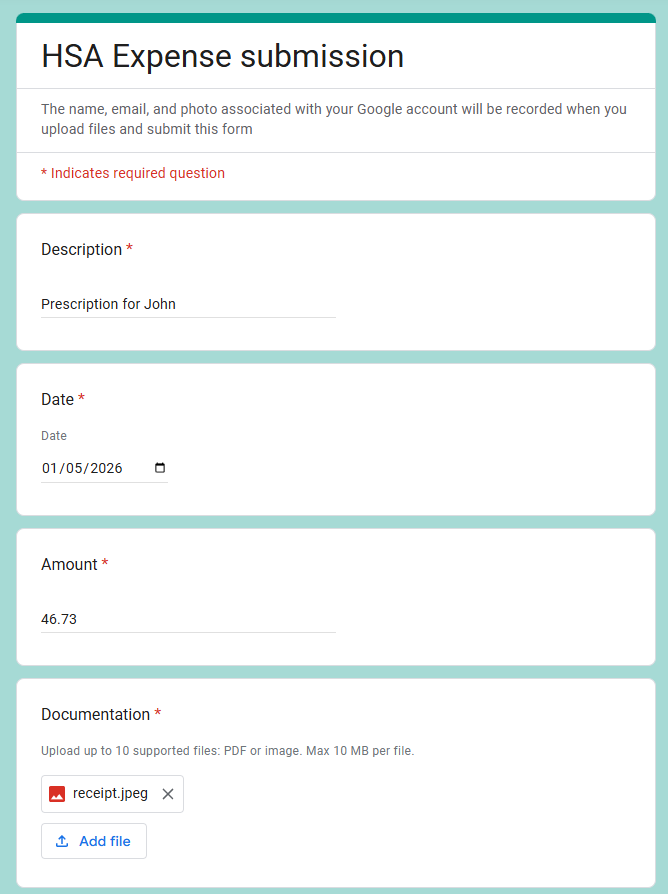
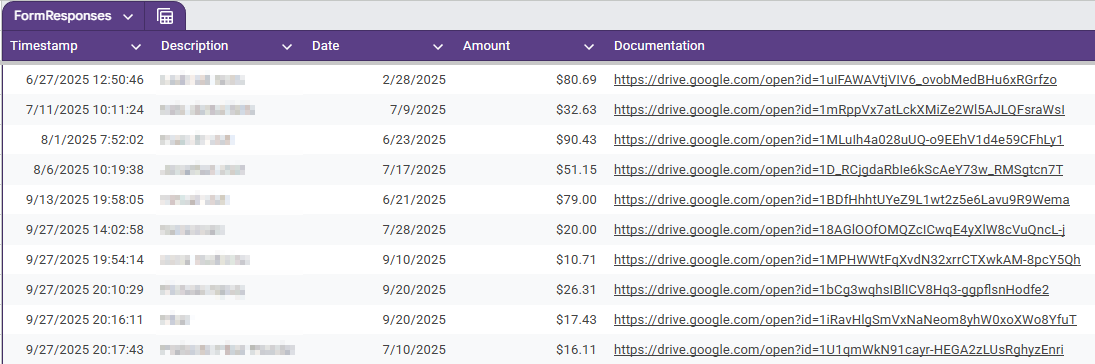
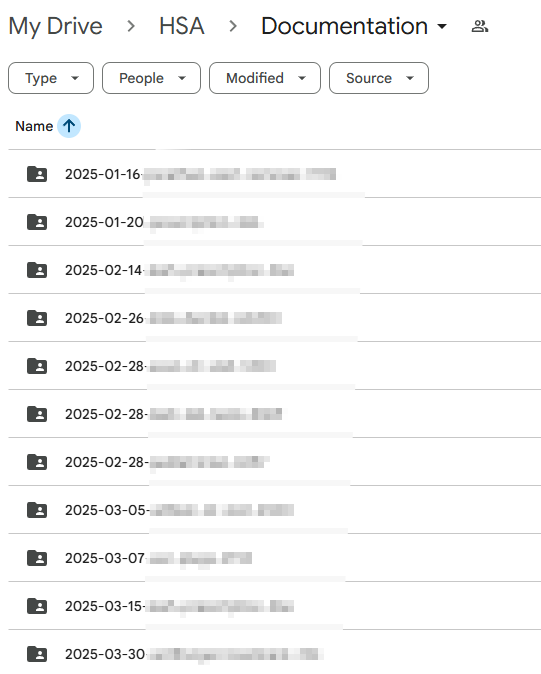
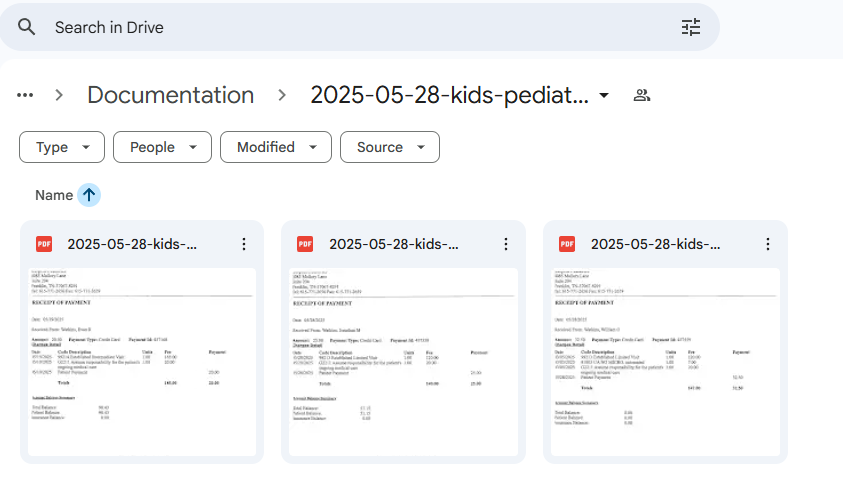
The whole process can take as little as a minute. When I submit the form, my script automatically files away the receipts and details in Google Drive with a consistent naming scheme and tracks the expense information (date, amount, description) in a spreadsheet.
Whenever I need to dip into funds (hopefully not for the next 2 decades at least), I’ll simply withdraw any funds I want and mark those rows in my spreadsheet as “reimbursed.”
No shoe box full of receipts, no questions about which receipts go with which expenses, no wondering which have already been reimbursed.
How to build your own HSA expense tracker
Step 1 (optional): Get a new Gmail account
I created a new Gmail account to keep my scanned receipts separate from my normal Google Drive storage (something Clark Howard recommends for all finances, not just HSAs). You may want to do the same, but it’s not strictly necessary to get this to work.
Step 2: Create an HSA folder in Google Drive
And create a subfolder in it called Documentation.
Step 2: Create a Google Form
Google has a nifty tool called Google Forms. It’s like Surveymonkey built right into your Google docs suite. Create a new form for HSA expense submissions with the following fields:
- Date (use the date picker, not a textbox)
- Amount (add the validation that this be a number, not text)
- Description (free text)
- File attachments
All fields should be required. Configure the form to collect responses to a Google Sheet (this is a built-in option in Google Forms).
Step 3: Code!
Already your form will collect submissions and store them in a Google Sheet. But the way it stores file attachments is a mess. So we’ll add a Google Apps Script to automatically organize the files and rename them consistently so we can tell even in the folders which files go with which expenses.
From the Google Form, you can add a Google Apps Script event listener that responds to form submissions. Here is the code. The only thing you need to change is the DOCUMENTATION_FOLDER constant at the top. You can get the folder ID from the URL when you are in the Documentation folder you created in Step 2:
const DOCUMENTATION_FOLDER = DriveApp.getFolderById('1GAJRyf7752TTjY445DNBtYTLz2Cfy08s');

function slugify(text) {
  return text
    .toString()
    .toLowerCase()
    .replace(/\s+/g, '-') // Replace spaces with -
    .replace(/[^\w\d\-]+/g, '-') // Remove all non-word and non-digit chars
    .replace(/\-\-+/g, '-') // Replace multiple - with single -
    .replace(/^-+/, '') // Trim - from start of text
    .replace(/-+$/, ''); // Trim - from end of text
}

function extractFormSubmission(e) {
  const rawFormData = {};
  for (const itemResponse of e.response.getItemResponses()) {
    rawFormData[itemResponse.getItem().getTitle()] = itemResponse.getResponse();
  }

  const formSubmission = {
    expenseDescription: rawFormData['Description'],
    expenseDate: rawFormData['Date'],
    expenseAmount: rawFormData['Amount'],
    expenseDocumentationFileIds: rawFormData['Documentation'] || []
  };

  if (!formSubmission.expenseDescription || !formSubmission.expenseDate || !formSubmission.expenseAmount || !formSubmission.expenseDocumentationFileIds.length) {
    throw 'Missing form data!';
  }

  if (formSubmission.expenseAmount.indexOf('.') < 0) {
    // Whole dollar. Format accordingly.
    formSubmission.expenseAmount = `${formSubmission.expenseAmount}.00`;
  }

  return formSubmission;
}

function createOrGetExpenseFolder(expenseName) {
  if (DOCUMENTATION_FOLDER.getFoldersByName(expenseName).hasNext()) {
    throw 'Expense folder already exists: ' + expenseName;
  }
  Logger.log('Creating expense folder ' + expenseName);
  return DOCUMENTATION_FOLDER.createFolder(expenseName);
}

function pad(i, n) {
  let str = String(i);
  while (str.length < n) {
    str = '0' + str;
  }
  return str;
}

function handleFiles(expenseName, expenseFolder, expenseDocumentationFileIds) {
  for (let i = 0; i < expenseDocumentationFileIds.length; i++) {
    const file = DriveApp.getFileById(expenseDocumentationFileIds[i]);
    const originalName = file.getName();
    const extension = originalName.substring(originalName.lastIndexOf('.'));
    const newFileNameSuffix = expenseDocumentationFileIds.length > 1 ? `-${pad(i + 1, 2)}` : '';
    const newFileName = `${expenseName}${newFileNameSuffix}${extension}`;
    file.setName(newFileName);
    file.moveTo(expenseFolder);
    Logger.log(`File "${originalName}" renamed to "${newFileName}" and moved to "${expenseFolder.getName()}".`);
  }
}

function insertSubmission(formSubmission) {
  Logger.log(formSubmission);
  const expenseName = slugify([
    formSubmission.expenseDate,
    formSubmission.expenseDescription,
    formSubmission.expenseAmount.replace('.', '')
  ].join(' '));

  const expenseFolder = createOrGetExpenseFolder(expenseName);
  handleFiles(expenseName, expenseFolder, formSubmission.expenseDocumentationFileIds);
  Logger.log('Finished');
}

function onFormSubmit(e) {
  insertSubmission(extractFormSubmission(e));
}
Step 4: Share
And now we have a working system with two way linking between the spreadsheet and the files in Drive. Now, just modify the form permissions so only you and your family can access it. Share the link with them. Bookmark it in your browsers and add it to your phone home screen for easy access.